Getting Started
Create, validate, run, and view your first AXP experiment.
This guide walks through creating, validating, running, and viewing your first AXP experiment. Run commands from the directory where you want AXP to create experiment files.
Install CLI and MCP, and sign in
Install the AXP CLI:
bash <(curl -fsSL https://dl.514.ai/install.sh) axpOptionally connect the AXP MCP server to your agent host. This lets your agent
query AXP results, manage org secrets, switch org context, and authorize your
local CLI with axp auth connect.
Install the AXP MCP server directly in Cursor. If Cursor opens MCP settings without an install prompt, add this same server config manually.
{
  "mcpServers": {
    "AXP": {
      "url": "https://app.514.ai/mcp"
    }
  }
}Request access: https://app.514.ai/sign-up
Sign in from the CLI:
axp auth loginFor non-interactive setup, append the token to the command above: --token <api-key>.
Create an intro experiment
axp intro creates a starter experiment that measures whether an agent can install and smoke-test a target CLI. The starter experiment has four variants, each with more install guidance than the last.
Ask your coding agent something like:
I'm a first-time AXP user. Create and run an experiment with my CLI using the
`axp` command.
Or run the command directly:
axp intro my-first-experiment \
  --cli mycli \
  --install-docs https://example.com/install \
  --install-command 'npm install mycli' \
  --smoke-command 'mycli --version' \
  --smoke-output-contains 'mycli version'
AXP writes my-first-experiment.yaml in the current directory.
At a high level, the generated YAML looks like:
schema_version: 2
agents:
  - name: claude
prompts:
  - id: baseline
  - id: informed
  - id: documented
  - id: explicit
environments:
  - name: host
tests:
  application:
  introspection:
limits:
The four prompts entries are the install-guidance variants. The tests entries are hidden from the agent.
Validate the experiment
axp experiment validate my-first-experiment.yamlaxp experiment validate checks the experiment file and exits non-zero on schema errors. When signed in, it may also print an advisory AI review of the experiment design.
Run the experiment
axp run my-first-experiment.yamlaxp run validates the experiment, submits it to the AXP platform, and waits for results. It prints the run id and a platform URL.
To run only some variants, or to repeat each variant for more signal, add --variant or --repeat:
axp run my-first-experiment.yaml --variant baseline --variant explicit --repeat 3Alternatively, run the experiment locally
To run in local Docker on your own machine:
axp local run my-first-experiment.yaml --watch--watch streams local agent events as the experiment runs. On first run, AXP pulls 514labs/axp-base:<version> from Docker Hub automatically (a few hundred MB; subsequent runs reuse the cached image).
Upload local results to the AXP platform with axp upload <run-id>.
View results
Open the platform link
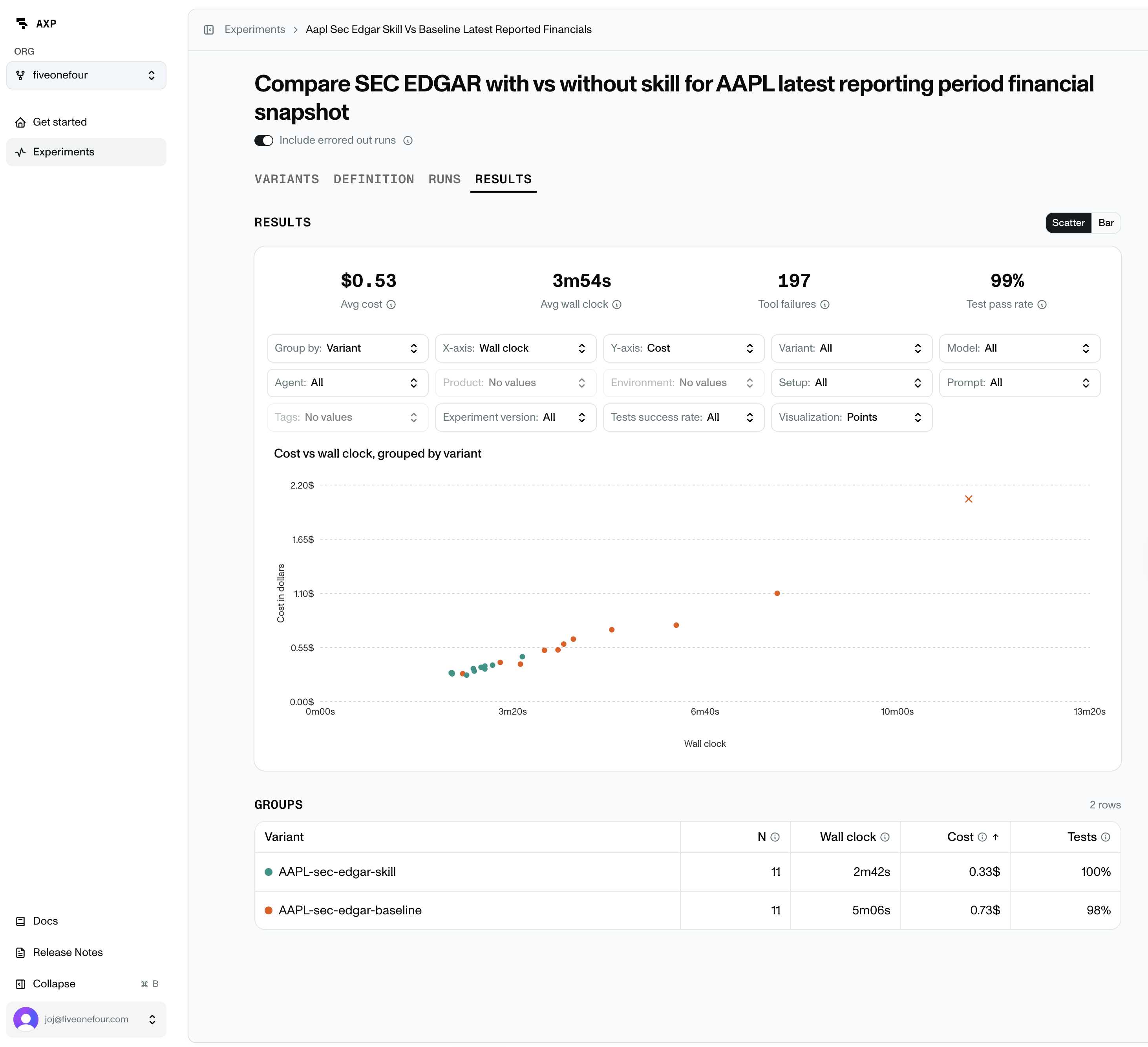
axp run prints a platform URL. Open it to review the experiment, variants, run statuses, and results.
The URL uses the experiment id from the YAML, for example https://app.514.ai/orgs/<org-id>/experiments/my-first-experiment.
Example results:
Ask an agent to summarize runs
Ask your coding agent to inspect runs with the AXP CLI. Here's a sample prompt that digs into outliers in particular:
Use `axp list` and `axp query` to summarize my latest AXP run. Compare pass and
fail rates, wall clock time, and tokens. Look through the traces for outliers and
tell me what sent those agents off track.
Use the CLI to retrieve or query results
List recent runs:
axp listQuery results on the AXP platform:
axp query "SELECT run_request_id, count() AS variants FROM runs GROUP BY run_request_id" --tableNext steps
You have run the starter experiment. Next, learn Experiment Design for choosing the task, variants, tests, and success criteria.